help
Using the phone App
Step 1: Download the Energy4Life app
Apple: https://apps.apple.com/us/app/nes-health/id1482400326
Android: https://play.google.com/store/apps/details?id=com.neshealth.energy4Life&hl=en_GB
You will require an email address and password provided by your practitioner or E4L.
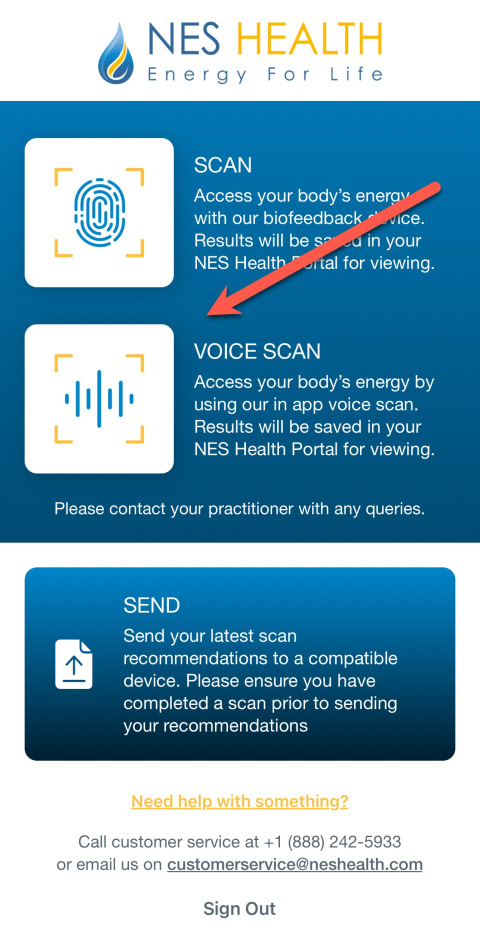
Open the app and press Voice Scan, If you haven't logged in already, you may be asked to log in at this stage
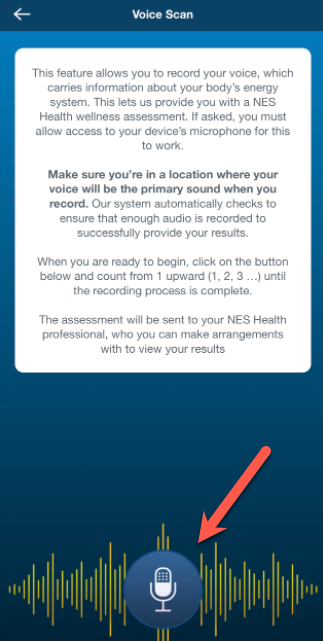
Follow the prompts and instructions. Press the microphone symbol to start the voice scan. You may be asked by the app to give permission to use your microphone in the app. This step is important in order for the app to record your voice.
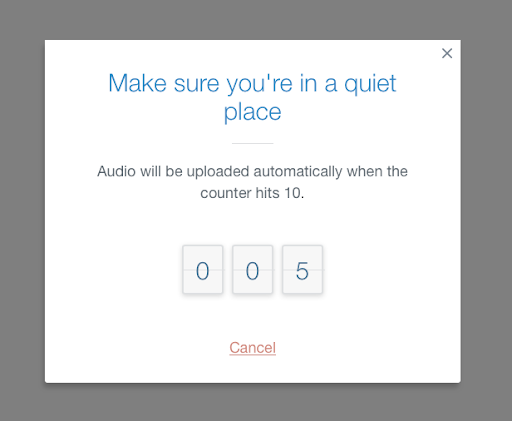
Count in time to the number being displayed on the screen
At the end of the count you will be asked if you are happy with the recording. If you are, press Proceed
The voice sample will now be processed for your scan results
If processing was successful, you will receive a Success screen. Your scan information has now been stored. Press Continue.
You will now have two options:
1. View Full Scan Results - this will take you to the E4L Portal to view the results of your scan (in most cases your practitioner will need to review your results before making them available)
2. Send recommended frequencies to device - if you are using a 3rd party product associated with E4L, you can send your recommendations directly. This does not apply to the E4L miHealth.
talk to us
Our services are constantly evolving and growing. Our mission is to provide best solution that helps everyone. If you want to contact us...